MTSS Plans — User Training
Section outline
-
MTSS Plans is where your district creates and tracks tiered intervention plans for students across three domains:
- Academic — RTI/AIS supports tied to a benchmark platform (DIBELS, i-Ready, NWEA MAP).
- Behavioral — PBIS contracts, restorative practices, behavior plans, tied to an incident.
- Attendance — contracts, mentors, home visits for chronic absenteeism.
Access: sign in to your district's VForce360 workspace with your district account and choose Analytics → MTSS Plans in the navigation. Your administrator provides your workspace address — it looks like
https://<your-district>.vforce360.ai/v2/mtss.What you see depends on your role (details in the Permissions section): district MTSS staff see every plan; a teacher sees only plans for students on their own roster.
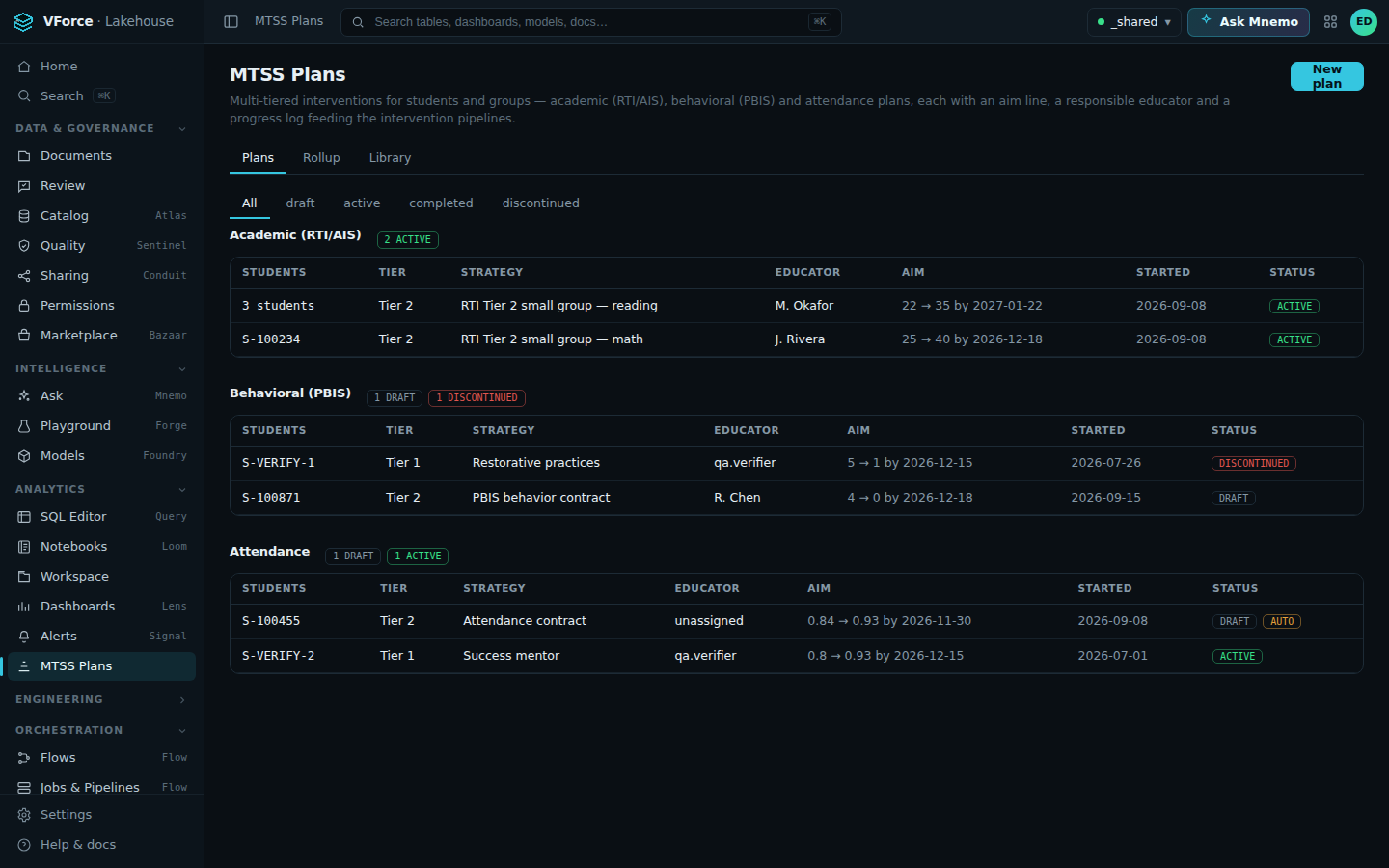
The MTSS Plans board: plans grouped by domain with status chips — click the image to view full size. -
Every plan uses a strategy from your district's intervention library — the library is the district's curated menu, per domain (e.g. RTI Tier 2 small group — math, PBIS behavior contract, Attendance contract, Success mentor).
- Open the Library panel on the MTSS surface to browse it.
- District MTSS staff can curate it — add, rename, or retire strategies per domain. Teachers see it read-only.
- The library is enforced: a plan cannot be created with a strategy that is not in the library for its domain. Curating the library is how the district shapes practice.
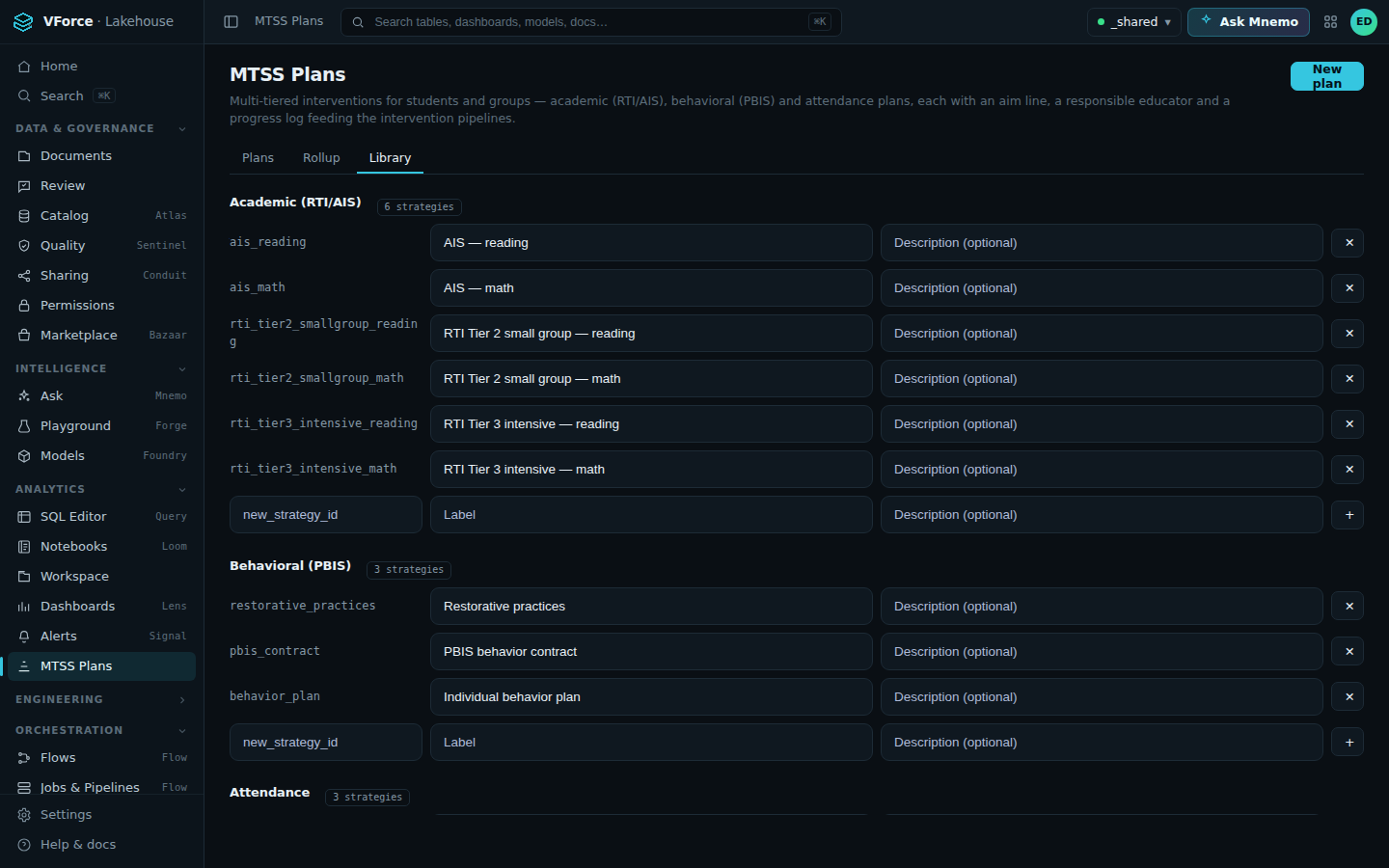
The intervention library, per domain — click the image to view full size. -
Click New plan and fill in:
- Students — one student, or several for a group plan (e.g. a Tier 2 small group).
- Domain and tier — academic / behavioral / attendance, tier 1–3. The domain filters the strategy picker to that part of the library.
- Strategy — from the library.
- Responsible educator — who owns the intervention.
- Aim — the starting value, the goal value, and the target date. For attendance this is a rate (e.g. 0.85 → 0.93); for academics a percentile; for behavior an incident rate aiming at 0.
- Domain link — the form asks for exactly what the domain requires: an academic plan needs its benchmark platform; a behavioral plan needs the linked incident; attendance plans need neither.
The form will not let you submit an invalid plan — required fields follow the domain you pick.
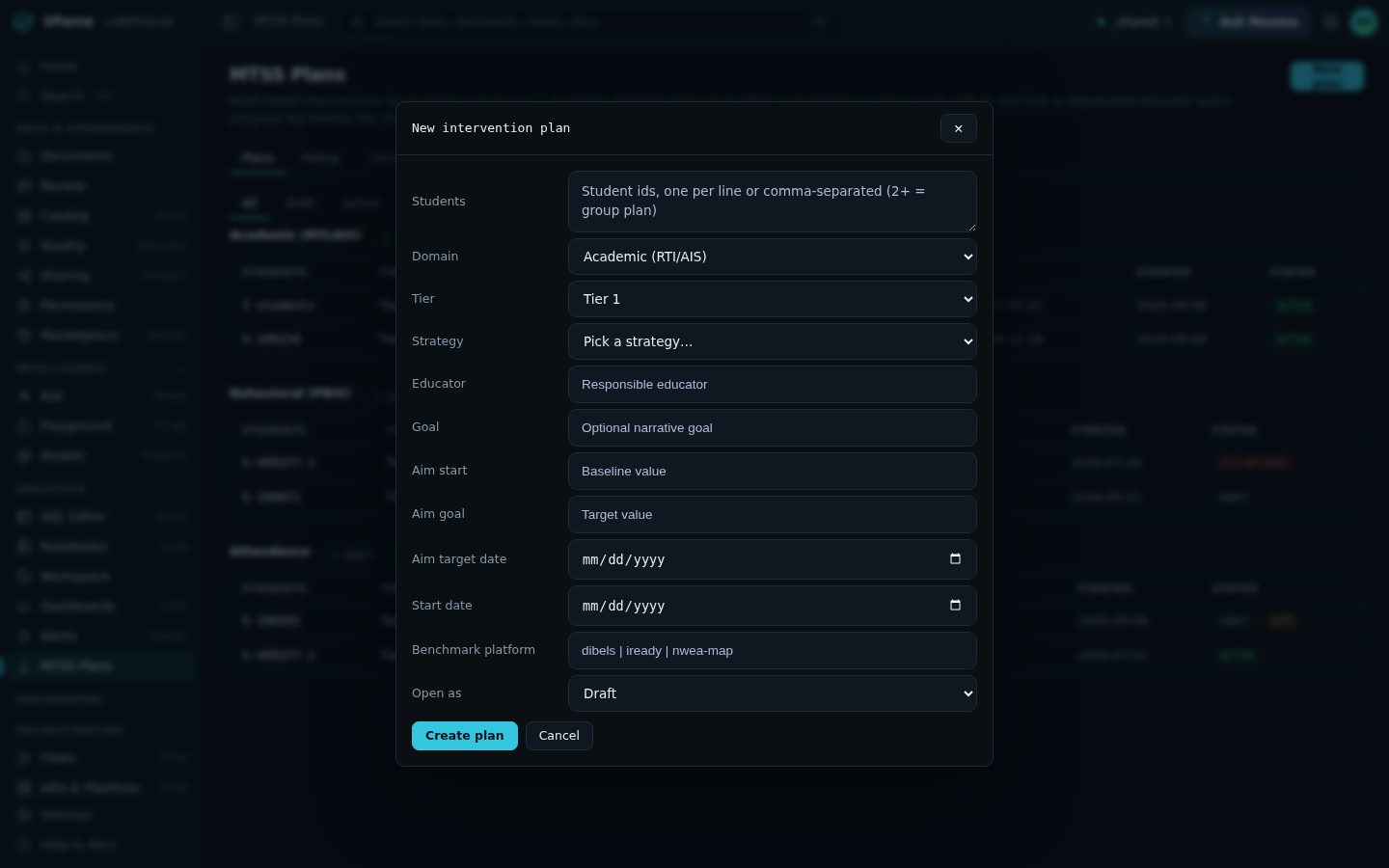
The New intervention plan dialog — required fields follow the domain — click the image to view full size. -
Plans move through a fixed lifecycle. The menu only ever offers the legal next steps:
draft → active → completed or discontinued
- Draft — created but not started. A draft can be activated or discontinued; it cannot jump straight to completed.
- Active — the intervention is running. Progress is logged in this state only.
- Completed — done; you record whether the goal was met.
- Discontinued — stopped without completing.
Completed and discontinued are final. Every transition is recorded with who did it, when, and an optional note — the plan's history timeline shows the full trail.
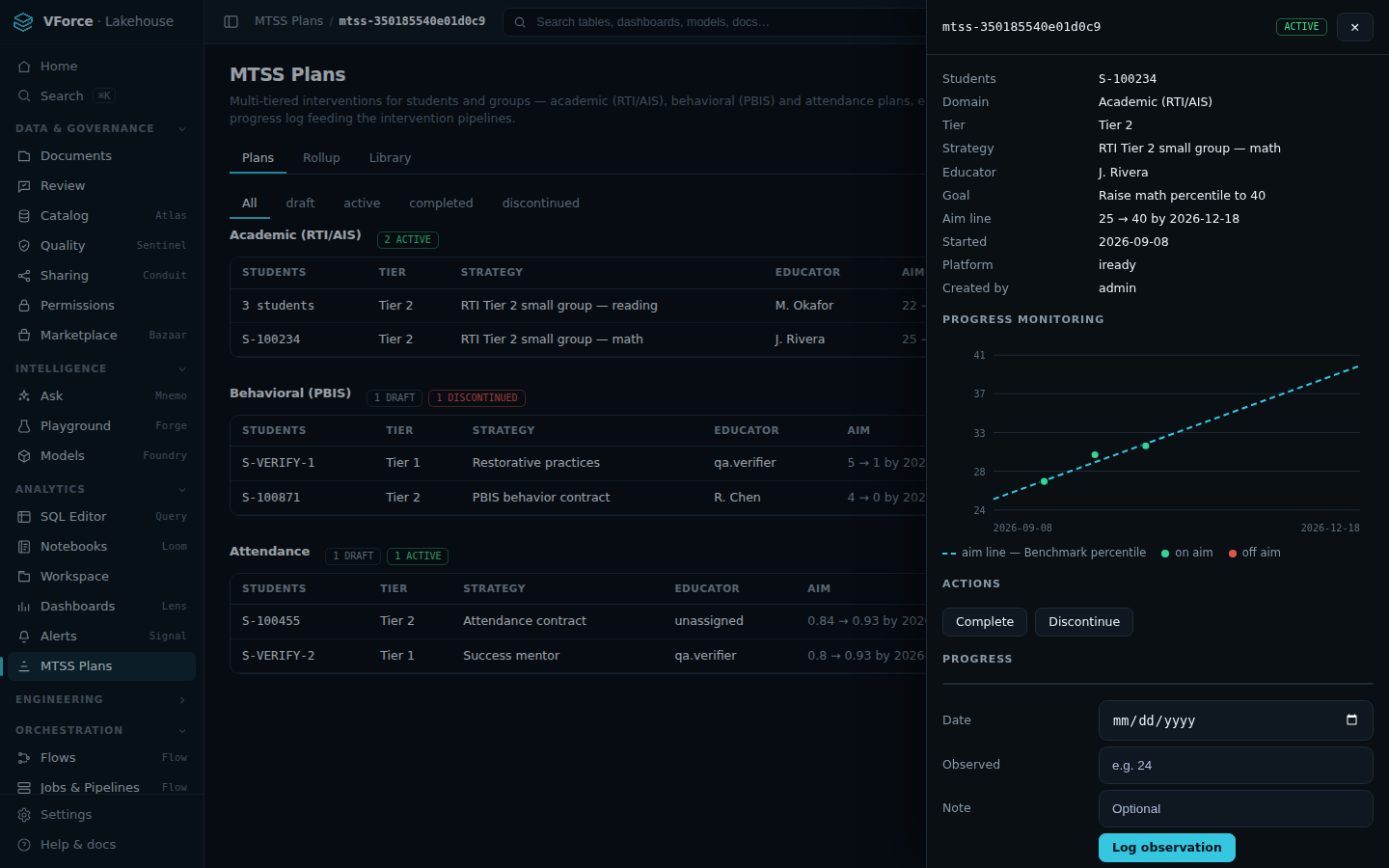
A plan drawer: details, aim-line chart, actions, progress log and history — click the image to view full size. -
While a plan is active, log observations from the plan drawer: the date, the observed value (attendance rate, percentile, incident rate), and an optional note.
The aim line is the straight path from the starting value to the goal by the target date. Each observation plots against it:
- On aim — at or better than the line for that date: the intervention is on track.
- Below aim — consider intensifying (a higher tier or different strategy).
School-level rollups aggregate what you can see — active/completed counts, %-on-aim, %-met-goal by domain. Small groups may show as suppressed rather than a number: that is privacy protection working, never a zero.
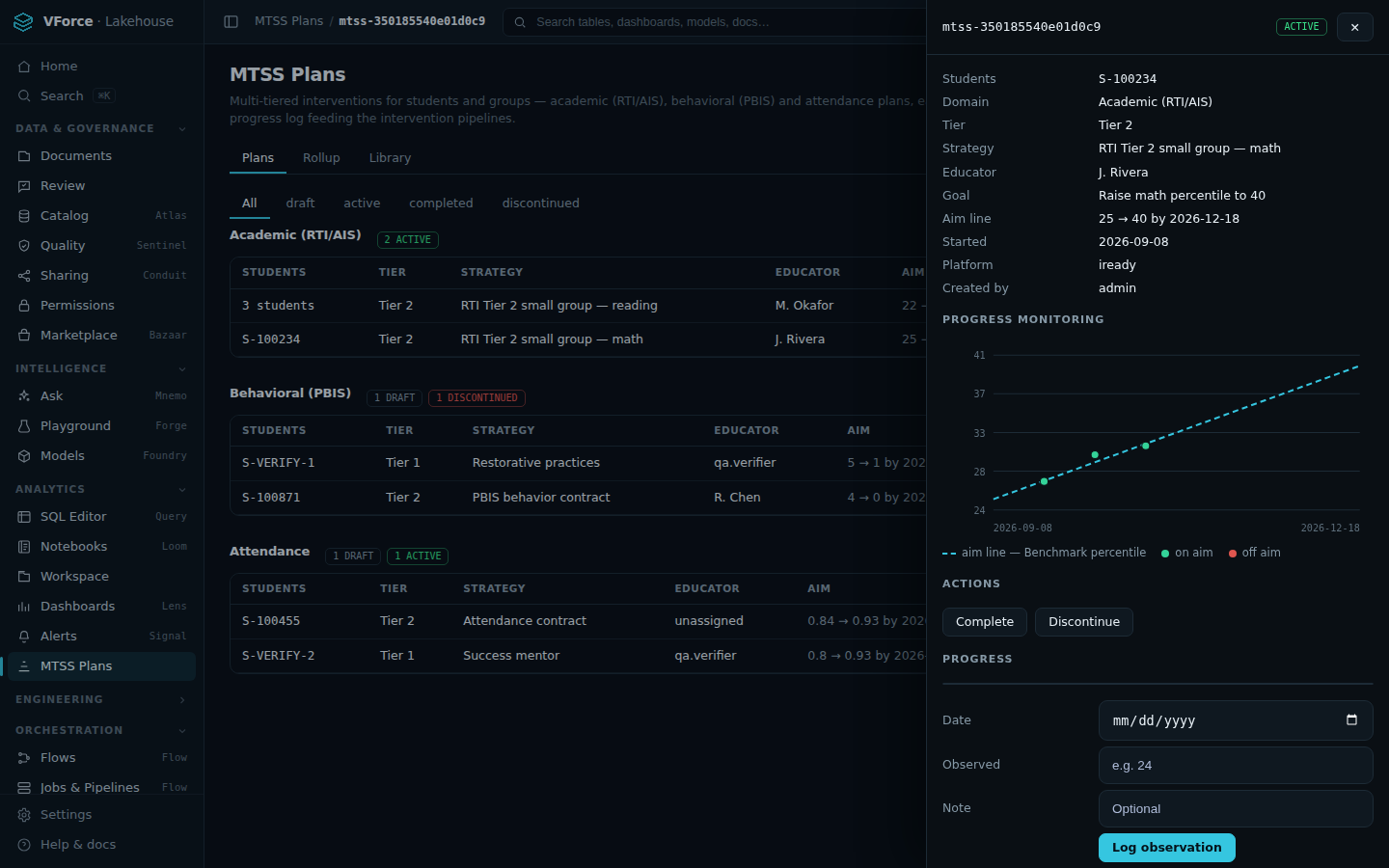
Observations plotted against the aim line — green dots are on aim — click the image to view full size. 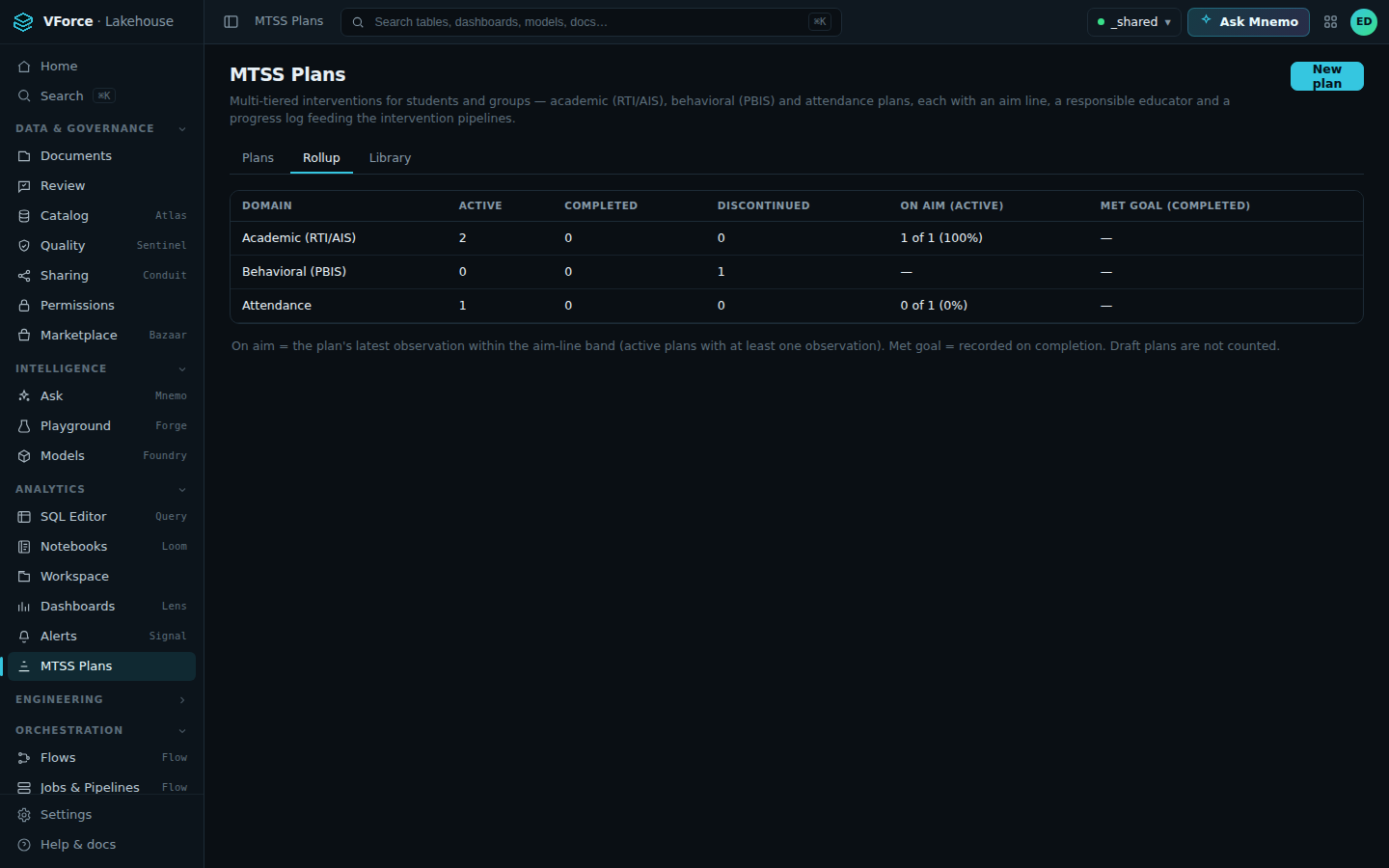
The school-level rollup: counts, %-on-aim and %-met-goal by domain — click the image to view full size. -
Plans carrying the AUTO badge were drafted by the platform's chronic-absenteeism sweep: when a student's attendance rate falls below the district threshold (default 90%) and no attendance plan exists, a draft attendance-contract plan is created automatically.
- An auto-flagged plan is a prompt, not a decision — review it, assign the right educator and strategy, then activate (or discontinue it if it is not warranted).
- Auto-drafts never overwrite an existing attendance plan for the student.
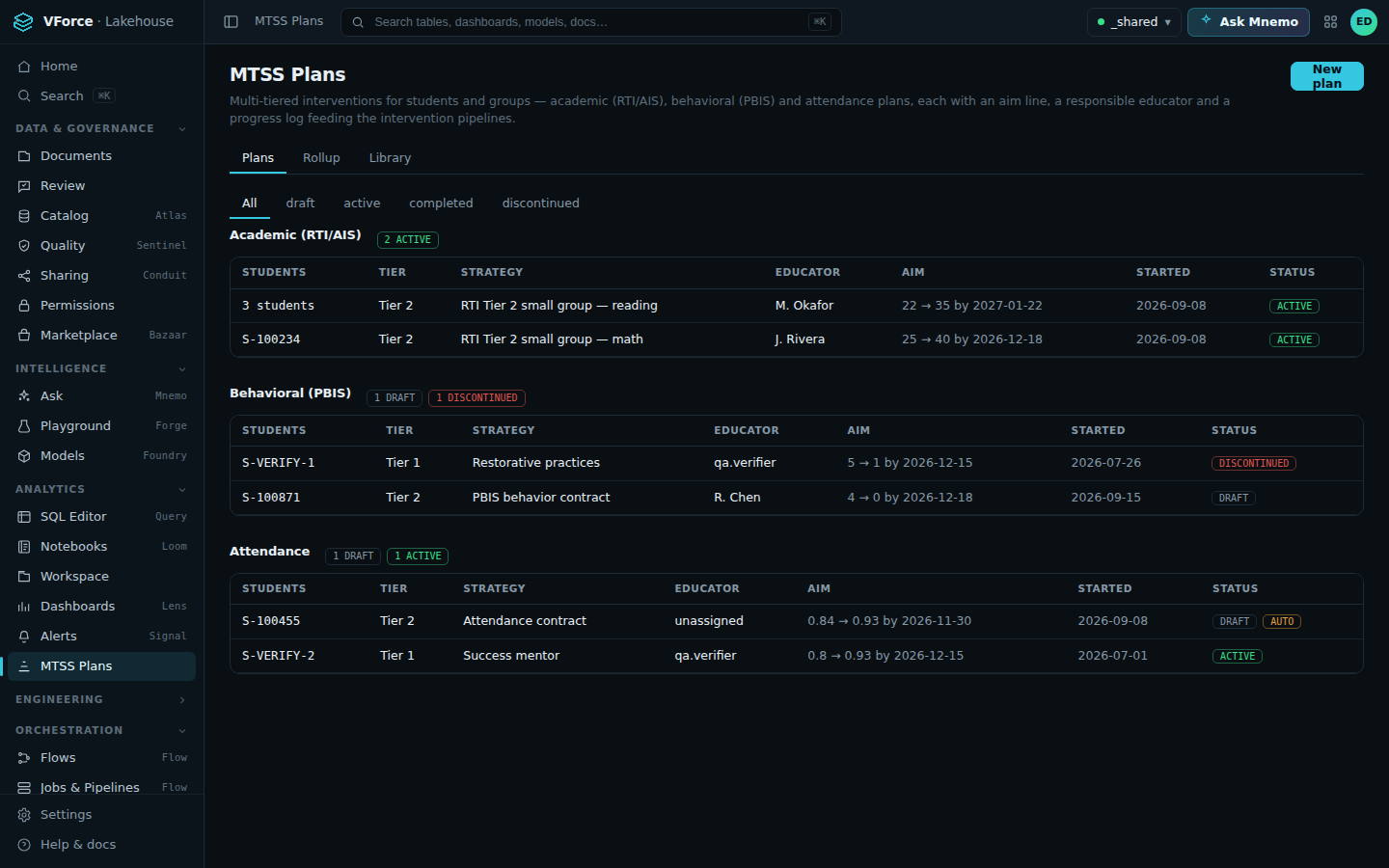
The AUTO badge on a sweep-drafted attendance plan (Attendance group, first row) — click the image to view full size. -
Access follows your role, decided by the district's access system (OpenFGA) — not by the app:
- District MTSS staff — see and manage everything: all plans, the library, rosters, all transitions.
- Teachers — see only plans for students on their own roster (including shared students who appear on more than one roster). Teachers can view plans and progress; creating, transitioning, and progress-logging are district actions in this release.
- No roster and no district role → no access.
Rosters are managed by the district (sections with a teacher and their students). If your roster looks wrong, contact your MTSS coordinator — the fix is a roster update, not a workaround.
Every read and change is audited. Small-cell privacy suppression applies to all aggregates.
-
- Open the app: your district's VForce360 workspace → Analytics → MTSS Plans.
- Create: New plan → students → domain/tier → library strategy → educator → aim → domain link.
- Activate a draft before logging progress.
- Log progress from the plan drawer while active; watch the aim line.
- Complete with met-goal yes/no; discontinue with a note.
- AUTO badge = review and adopt (or discontinue) the platform-drafted attendance plan.
- Can't see a student? Roster issue — ask your MTSS coordinator.